
Upload your image
Choose a JPG, PNG, or WebP file up to 5 MB. Everything runs locally in your browser.
Use this free square crop tool to make any image square for avatars, Instagram posts, and product photos—no sign-up or watermark.
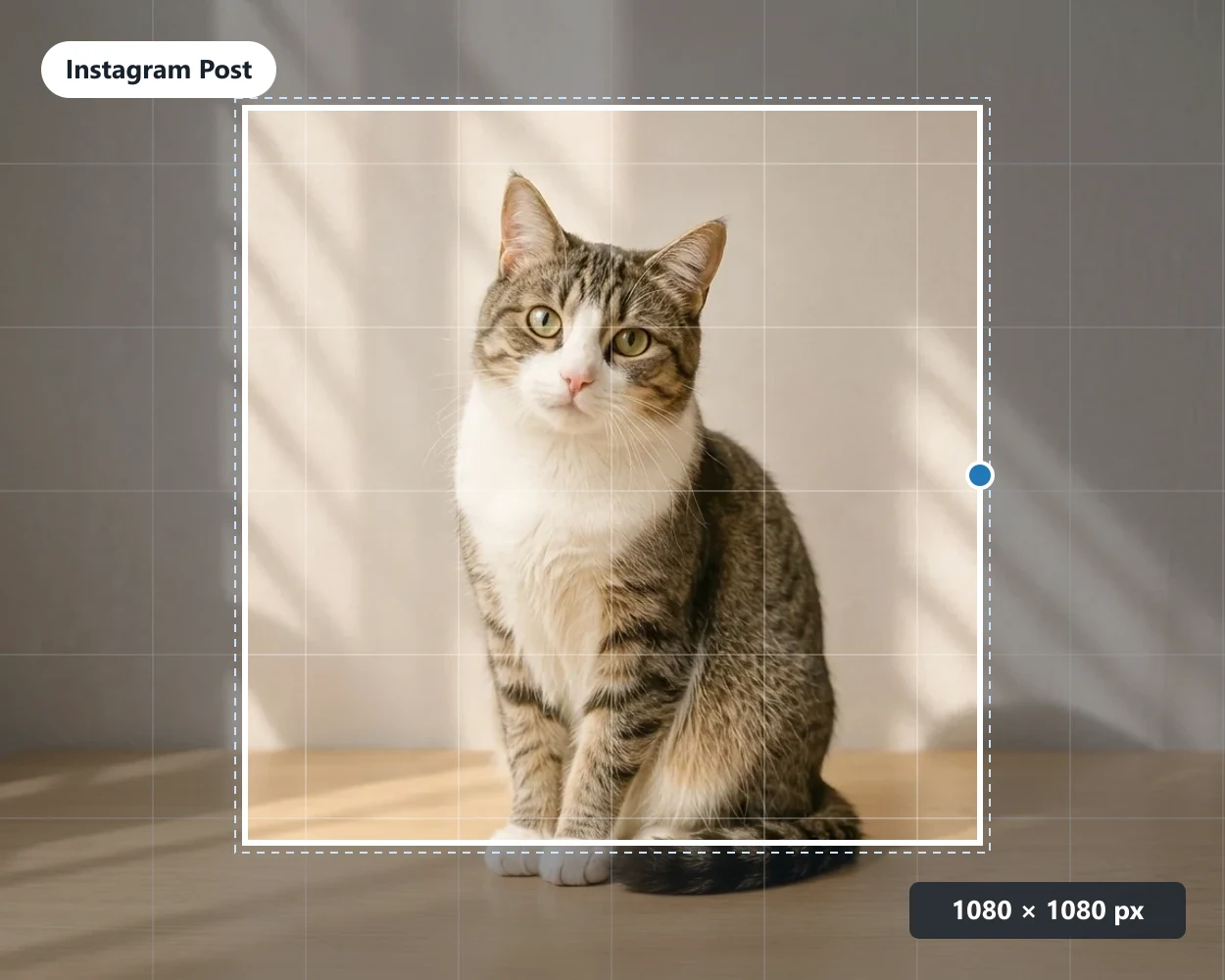
Drop, paste, or choose a JPG, PNG, or WebP file up to 5 MB.
Your image stays in your browser
Try one of these examples
Choose a JPG, PNG, or WebP file up to 5 MB. Everything runs locally in your browser.
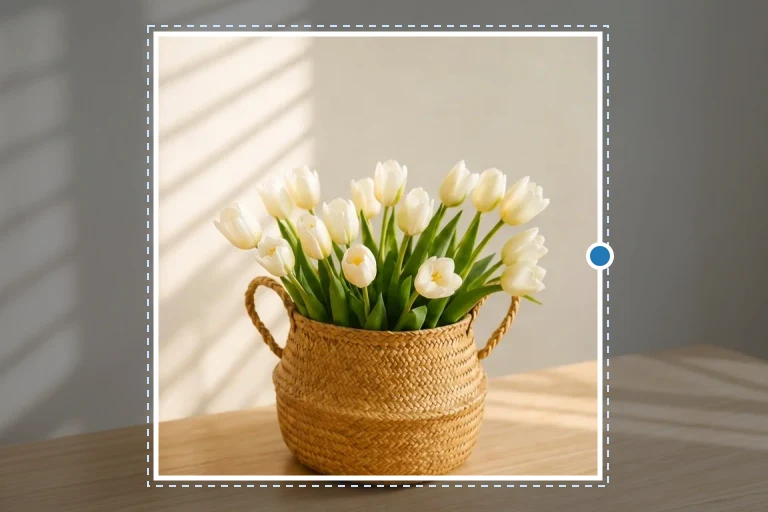
The square ratio is already locked. Drag the frame over the part of the image you want to keep.
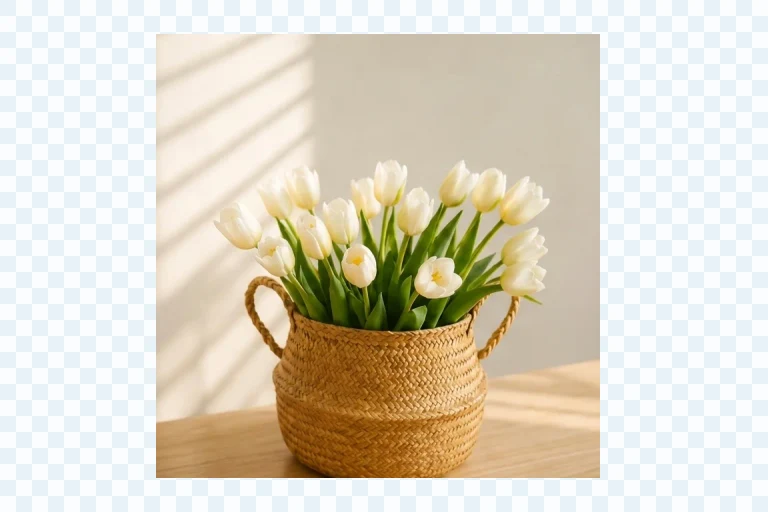
Set an exact size such as 1080 × 1080 and export a JPG, PNG, or WebP.
A 512 × 512 square is the standard avatar export. It stays sharp when platforms shrink it into a small circle, it survives retina displays, and it leaves room to recenter the face after the crop. Team pages, forums, and messaging apps all accept it.
The native square feed size. An 1080 × 1080 export fills the post without upscaling, survives platform compression cleanly, and keeps text or logos readable. It is also a safe default for LinkedIn and X image posts.
Marketplaces and catalog grids expect consistent square product shots. A 1200 × 1200 crop gives enough resolution for zoom views while keeping every listing in a set visually aligned on the same grid.
For cards, list rows, and chat previews, a 400 × 400 square keeps the file light while the subject stays recognizable. Use it when detail matters less than load speed.
Profile pictures, staff directories, and messaging apps all display squares, and most of them circle-crop the result. A deliberate square crop lets you center the face and leave headroom before the platform takes over. Without it, the platform decides which part of a rectangular photo survives. Crop once at 512 × 512, upload the same file everywhere, and every avatar shows the same framing.
Square posts occupy the most screen space a feed offers and never get awkwardly cropped by the platform. Quotes, product announcements, event cards, and before-and-after shots all sit naturally in a 1:1 frame. Exporting at 1080 × 1080 means the platform does not resize or soften the image, and a grid of square posts looks deliberate rather than assembled from leftovers.
Store pages, marketplace listings, and comparison charts expect square product shots. When every image shares the same 1:1 ratio and a consistent 1200 × 1200 size, the grid aligns and the products become comparable at a glance. A square crop also removes distracting backgrounds at the edges, keeping attention on the item itself.
Compare
This page does one job: turn a photo into a square. The 1:1 ratio is selected and locked before you upload, square sizes are one click away, and the export is tuned for exact dimensions like 512 × 512 and 1080 × 1080. If a square image is the goal, this is the shortest path.
For every other frame, the crop pictures online tool handles the general cases: ratios like 4:3 and 16:9, target file sizes for JPG exports, shape masks for circles and rounded squares, and free-form cropping when no ratio fits. Both tools run in the browser and export JPG, PNG, or WebP, so the choice is about the shape you need rather than the workflow.
Tips
Leave headroom above faces. Platforms usually display avatars inside a circle drawn over your square, so a head that touches the top edge will be clipped. Center the subject and keep a little space on all sides before downloading.
Keep product corners inside the frame. A box or label clipped at the edge looks accidental, while a little breathing room reads as intentional. For thumbnails, keep text toward the middle third, since platform overlays and timestamps often cover the corners.
Check transparency before exporting. PNG keeps transparent corners on a square mask, which disappear against dark themes. If the result will sit on unknown backgrounds, export JPG for a guaranteed white fill or preview the PNG on both light and dark surfaces.
Good to know
Short answers about ratios, sizes, and what this square crop tool does.
Upload your image, keep the 1:1 ratio selected, and drag the frame over the part you want to keep. Then set an exact size if you need one and download the square image.
Choose the 1:1 · Square ratio in the Ratio tab — it is the default here. Width and height stay locked together, so the crop frame is always square.
Use 512 × 512 for avatars and profile pictures, 1080 × 1080 for Instagram posts, and 1200 × 1200 for product images. For small thumbnails and cards, 400 × 400 is usually enough.
Not in this tool. It crops the image to the square frame, so everything outside the frame is removed. Keeping the entire photo would need a background-fill feature, which is not available yet.
Yes. This browser tool crops images to a square in three steps with no installation, no account, and no watermark. It works with JPG, PNG, and WebP files up to 5 MB.
Yes. Cropping images into a square is free, with no sign-up and no watermark. Standard processing runs in your browser, so your image stays on your device.
More image tools
Use Circle Crop for a clean circular PNG, crop pictures online for other ratios and target file sizes, or the lasso crop tool for a custom outline.