
Upload your image
Choose a JPG, PNG, or WebP file up to 5 MB.
Use this free circle crop tool to crop a picture into a circle and download a transparent PNG for profiles and logos—no sign-up or watermark.
Circle crop
JPG, PNG, or WebP · up to 5 MB
or drag and drop anywhere in this panel
No image? Try one of these
Choose a JPG, PNG, or WebP file up to 5 MB.
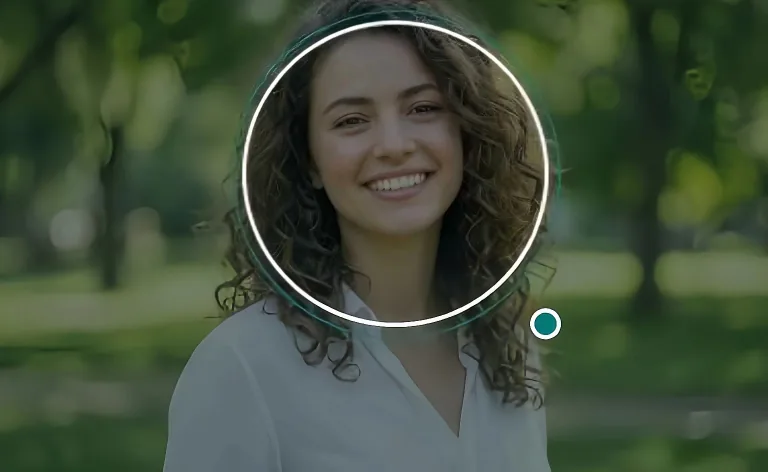
Drag to frame the subject, then resize the circle for a clean crop.
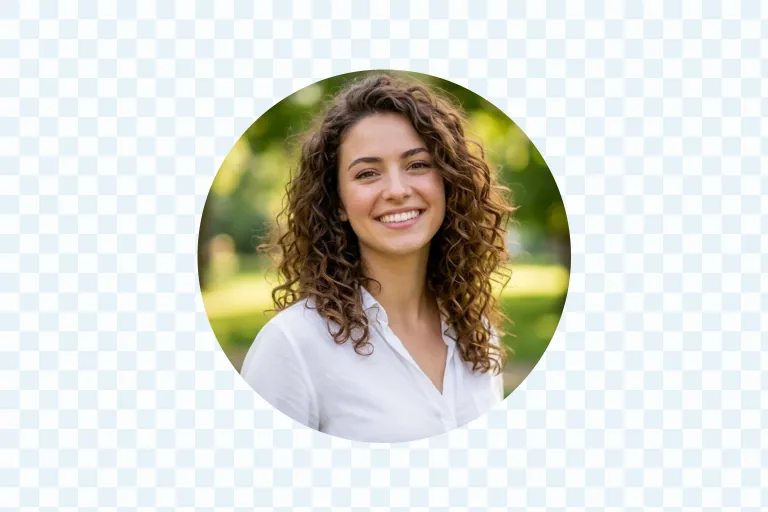
Export a round PNG with a transparent background, ready to use.
Made for round spaces
Many social platforms and company directories display avatars inside a circle. Crop the face before uploading so you control the framing. Leave space around the head and keep important details away from the edge for a natural-looking profile picture.
Turn a logo or brand mark into a round PNG for social accounts, website headers, app mockups, and slides. Transparency is useful when the asset must sit on several backgrounds. Start with comfortable padding around important elements.
Create a round sticker, badge, label, or decorative image without building a mask by hand. The transparent outside area lets the PNG overlap other elements cleanly. Add borders, shadows, text, or color later in your preferred design tool.
Use a circular product photo to highlight a feature, material, or detail in a store banner or comparison graphic. Keep the complete product visible when recognition matters, or zoom in to show a specific texture or feature.
Built for one clear job

This circle cropper focuses on one task instead of hiding it inside a large editing interface. You do not need layers, a manual mask, or a complex toolbar.
The crop remains circular at every size. The main preview separates the visible and transparent areas, while the small preview reveals whether a face, logo, or product will remain recognizable as an avatar.
Your standard crop is processed in the browser. The image is not sent to an AI service for circle cropping, and no account is needed. The tool accepts the same practical formats as the main LassoCrop editor—JPG, PNG, and WebP up to 5 MB—and exports a transparent PNG with no watermark.
Choose the right boundary
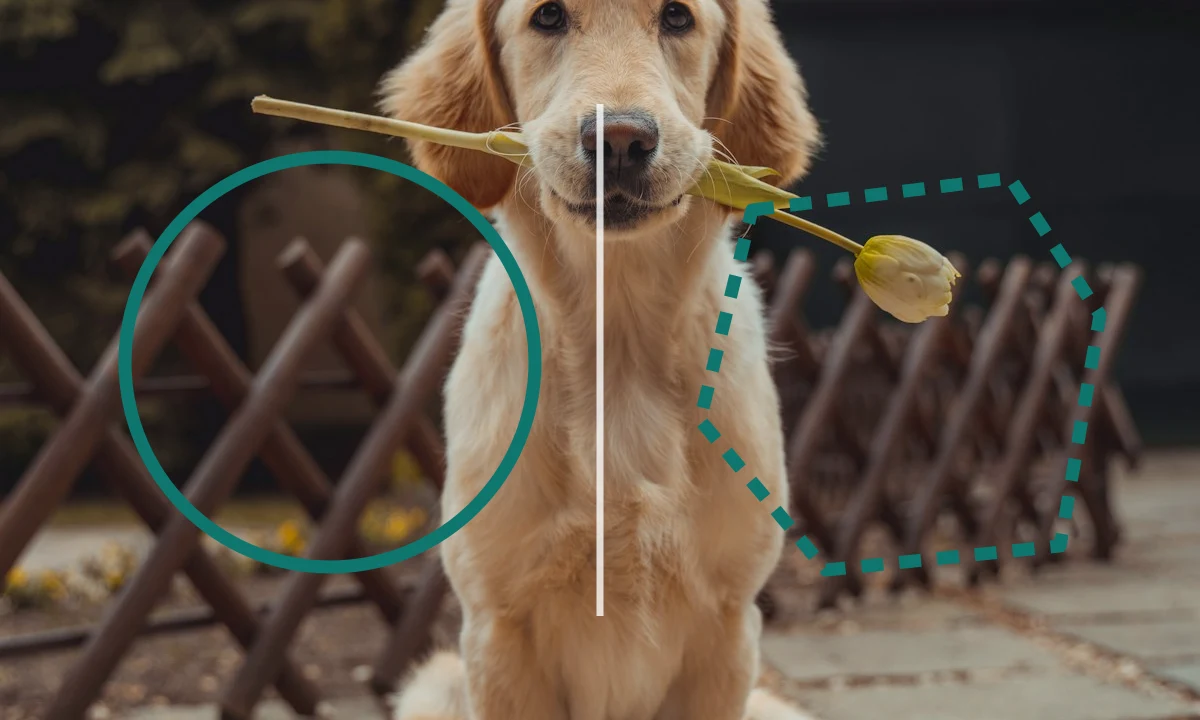
Circle crop and lasso crop solve different selection problems. A circle crop tool keeps a fixed round boundary, making it the faster choice for avatars, circular logos, badges, stickers, and round thumbnails. You adjust the circle, but you do not draw the outline yourself.
A lasso crop tool is better when the subject has an irregular shape or when you need to decide the boundary point by point. LassoCrop’s main editor supports Rectangle, Polygon, Freehand, and optional AI-assisted selection for products, people, pets, screenshots, artwork, and other subjects that do not fit inside a simple round frame.
Use this circle cropper when the output must be round. Use the free lasso crop tool when you need a custom outline or more control over an uneven edge. Both workflows can produce a transparent PNG, but the best choice depends on the shape you want to keep rather than the format of the original image.
A cleaner result
Start with the largest, clearest source image available. A small image may look acceptable in the editor but appear soft when used at a larger size. Avoid repeatedly downloading, re-uploading, and cropping the same compressed file because each intermediate version may contain less useful detail.
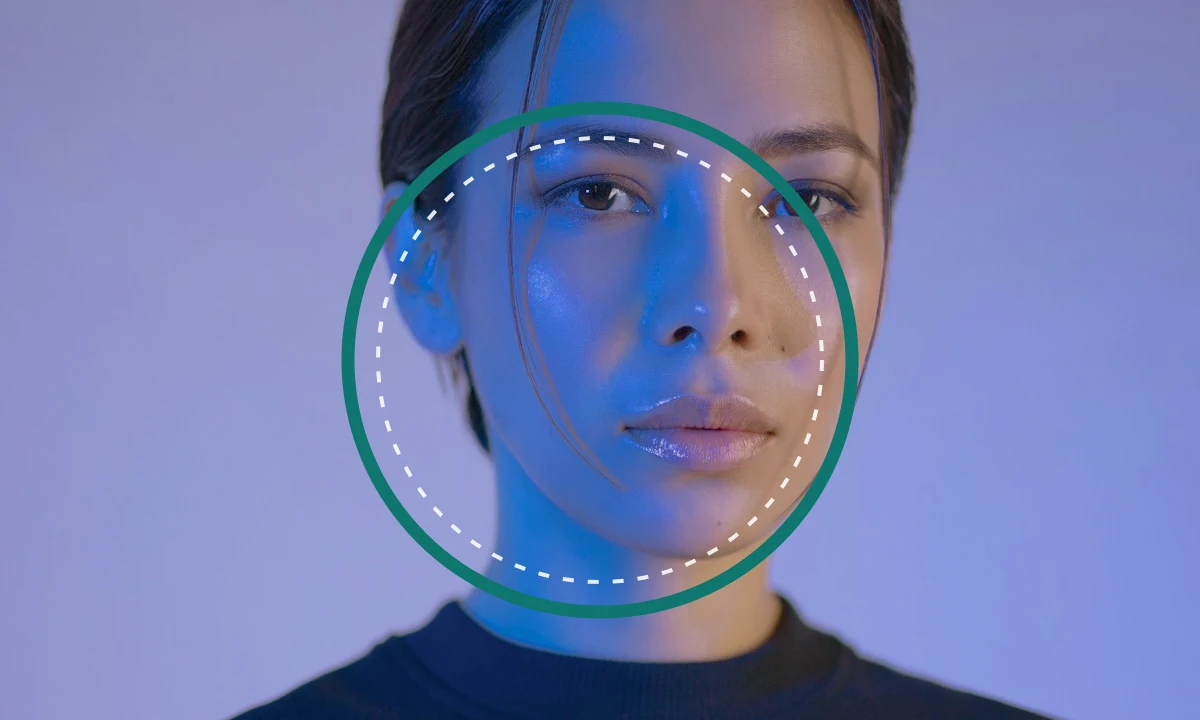
When cropping a portrait, do not place the top of the head directly against the circle. A little space creates a calmer composition and prevents profile platforms from making the image feel cramped. When cropping a logo, keep text and thin lines away from the boundary so they are not visually clipped.
Check the complete edge before downloading. Hair, hats, product corners, leaves, and logo details can be easy to miss when they sit close to the shaded area. If the result will be displayed very small, simplify the composition and keep the main subject large enough to remain recognizable.
The exported file uses PNG because transparency is required outside the circle. If another service later converts it to JPEG, the transparent area may be replaced with white or another solid color. Keep the PNG version as your reusable master file whenever you expect to place the circle crop on different backgrounds.
More image selection tools
Use the free lasso crop tool to select with Rectangle, Polygon, Freehand, or optional AI assistance and export a transparent PNG. For standard frames, social sizes, and JPG or WebP downloads, crop pictures online. For a locked 1:1 frame, crop into square.
Lasso Crop ToolGood to know
Everything you need for a clean, round PNG cutout.
A circle crop keeps the part of an image inside a round boundary and removes everything outside it. The removed area is transparent in the downloaded PNG, so the result appears circular when placed on another background.
Upload the original image, position the circle, and export the selected area. LassoCrop calculates the crop from the source image rather than the smaller on-screen preview. The PNG uses the selected area’s source-image dimensions, helping it remain sharp without deliberately enlarging the file.
Yes. Circle crop results are downloaded as PNG files with transparency outside the round edge. Keep the PNG format if you want to place the cutout on different colors, images, slides, or design layouts.
Yes. The standard circle crop and transparent PNG download are free to use, with no sign-up and no watermark. You can upload JPG, PNG, or WebP images up to 5 MB.
Yes. Move and resize the circle around any part of the image you want to keep. Faces, logos, products, pets, icons, badges, and illustrations all use the same workflow. Choose a source image with enough space around the subject for easier positioning.
Yes. A circular image crop and a circle crop both keep the part of the image inside a round boundary and make everything outside it transparent. The two names describe the same edit, and this tool handles both.
Use a free browser-based tool instead. Upload your picture, drag and resize the circle over the part you want to keep, and download a transparent PNG. There is nothing to install and no account is needed.