
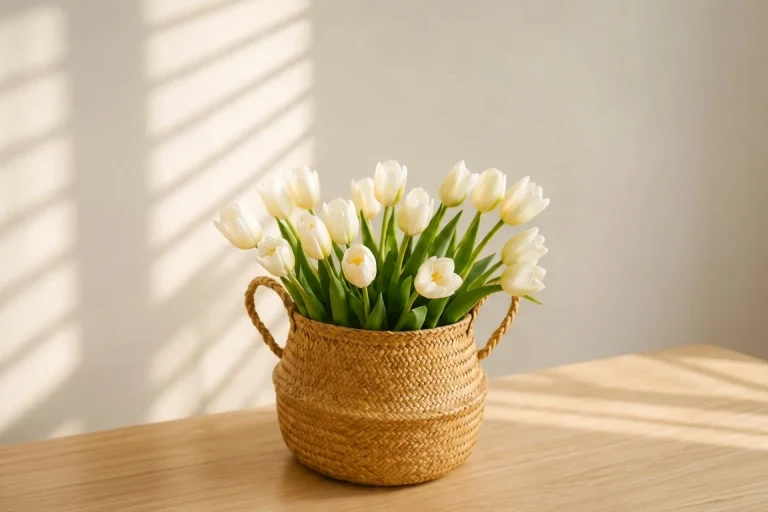
Upload your picture
Choose a JPG, PNG, or WebP image up to 5 MB. The standard workflow runs locally in your browser.
Use this free crop picture tool to choose the right frame, set exact dimensions, and download a polished JPG, PNG, or WebP—no sign-up or watermark.
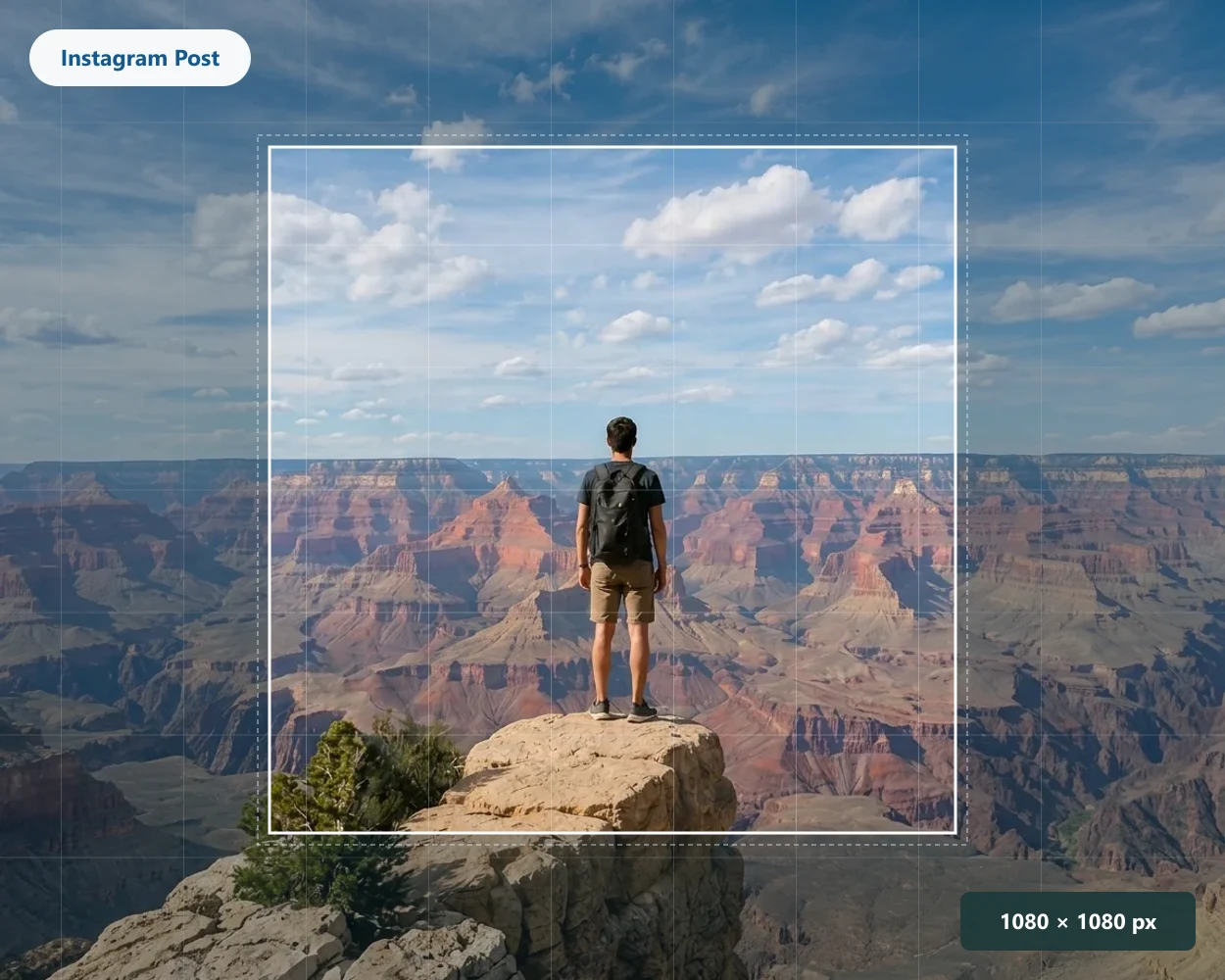
Drop, paste, or choose a JPG, PNG, or WebP file up to 5 MB.
Your image stays in your browser
Try one of these examples
Choose a JPG, PNG, or WebP image up to 5 MB. The standard workflow runs locally in your browser.
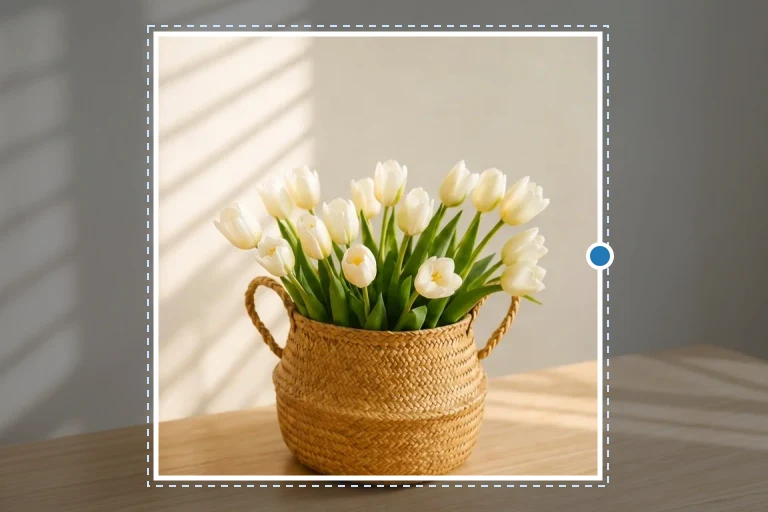
Pick a destination, ratio, or mask, then move and scale the image until the important part is inside the frame.
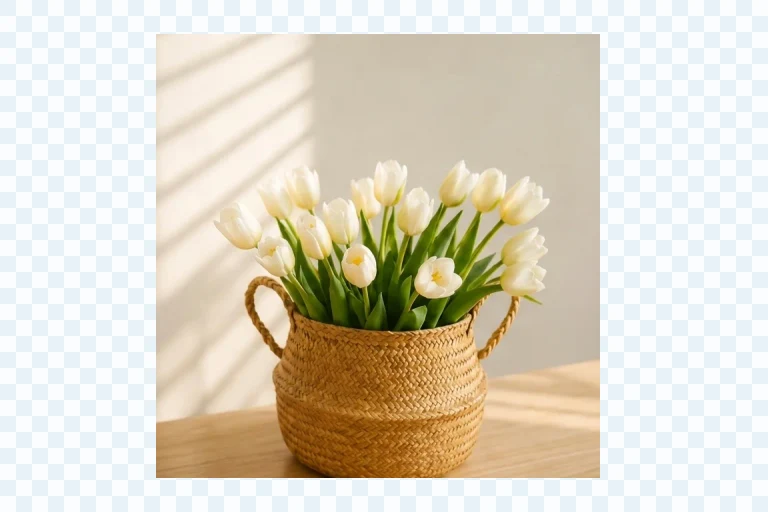
Choose JPG, PNG, or WebP, check the real file size, and download the crop picture for its next use.
A square crop works for profile pictures, staff directories, and account avatars. Keep the face or logo comfortably inside the frame so small displays do not make it feel cramped.
Use 1:1 for feeds and 9:16 for Stories, Reels, and Shorts. The right frame lets viewers see the subject before a platform applies its own display treatment.
Choose 16:9 for YouTube or a wide cover ratio for banners. Leave room around text, faces, and important product details near the edges.
Consistent dimensions make product grids and presentation slides feel organized. Start at 1200 × 1200 for square products or 1600 × 900 for wide web content.
A 400 × 400 square crop is a safe avatar size. It stays sharp when platforms shrink it into a small circle, and it works for team pages, forums, and messaging apps. Center the face and leave a little headroom.
An 800 × 800 square suits feed posts, product shots, and quoted graphics. It is large enough to survive platform compression while keeping the file light. Check that captions or logos sit away from the edges.
A 1280 × 720 frame matches standard video thumbnails and wide preview cards. Keep the subject and any text in the middle third, since platform overlays and timestamps often cover the corners.
Frame first
A good crop picture starts with two connected choices: the visible frame and the final output size. Crop ratio controls the composition, while output size controls how many pixels are in the downloaded file. LassoCrop keeps the ratio locked by default, so adjusting width or height produces a matching dimension instead of a stretched image.
Use Free crop when the destination does not have a required shape. Select 1:1 for square profiles and feeds, 3:2 for camera-like landscape photos, 4:3 for standard frames, 9:16 for vertical video, or 16:9 for widescreen content. The list explains each option in plain English, so it is easier to choose without remembering ratio math.
When you select a scenario such as Instagram Post or YouTube Thumbnail, the crop frame and output pixels update together. If you later type a custom width or height, the selection becomes Custom. That keeps the editor honest about what you changed while leaving the current image position untouched.
Smaller when useful
Balanced is the default export choice. It aims for a practical balance of visible quality and file size, which works well for everyday photos, thumbnails, covers, and product images. The final preview shows the actual current download size after the editor finishes encoding the image, rather than a rough estimate based only on pixel dimensions.
For JPG exports, Target size gives more control. Choose 200 KB, 500 KB, 1 MB, 2 MB, or enter a custom limit. The tool searches for the best JPG quality that remains under the selected limit. It keeps the output dimensions you selected. If a very small target cannot be reached without changing dimensions, it tells you directly instead of quietly making the image smaller.
PNG and WebP use Balanced in this first release. PNG is valuable for transparent edges and clean graphics, while WebP is useful when a modern platform accepts it and you want an efficient file. The file-size badge updates after a short pause when you change the crop, dimensions, mask, or format.
Choose the file
JPG is usually the best default for photographs because it is widely compatible and can be optimized to a target size. PNG is the right choice when transparency matters, such as a circle, heart, star, or other shape mask. It keeps the space outside the shape transparent instead of filling it with white.
WebP can preserve transparency while often remaining compact. It is a useful option for websites and modern services that support it. With a non-rectangular mask, JPG remains available but fills the space outside the shape with white. Choose PNG or WebP when you want the shape edge to remain transparent over another background.
For a simple rectangular photo, any of the three formats can work. The best format for a crop picture depends on where you plan to use it next: use JPG for broad sharing, PNG for transparency and graphics, and WebP for supported modern web publishing.
A better composition
For a better crop picture, start with the largest clear source image you have. Enlarging a tiny image can make the result look soft, especially for a cover or product listing. Position the subject before you decide on the final size: a correct ratio cannot fix a face, logo, or product that is too close to an edge.
For portraits, leave some space above the head and around the shoulders. For product pictures, make sure important corners and labels sit inside the crop boundary. For thumbnails, leave intentional empty space if text will be added later in another design tool. Check the Live preview to see the composition at the actual output proportion.
Shape masks are best used as a simple finishing step, not as a substitute for a detailed cutout. Rounded squares suit app-like images, circles and ovals suit quick avatars, and hearts, stars, triangles, and hexagons work for badges or decorative assets. Use Circle Crop when a round image is the whole job, make an image low quality when you want deliberate artifacts, or the Lasso Crop tool when the subject needs an irregular outline.
Good to know
Everything needed to crop, size, and export a picture with confidence.
A crop picture tool lets you choose the visible part of an image, set the final dimensions, and export it in the format that suits your next destination.
Upload an image, choose a crop frame or size, adjust the picture, and download it locally. LassoCrop does not require an account or add a watermark.
Yes. Choose Instagram Post, Story / Reel, or YouTube Thumbnail from the Size tab to set a practical ratio and pixel size in one step.
Crop ratio controls the composition of the frame. Output size controls the downloaded pixels. LassoCrop keeps them synchronized so the final image is not stretched.
Yes. JPG works well for photos, PNG preserves transparent edges, and WebP is a compact modern option. Shape masks use PNG or WebP to keep transparency.
Yes. Target size searches for the best JPG quality that stays under the selected limit. It does not silently reduce your output dimensions.
No. Standard cropping, resizing, masking, and exporting happen in your browser.
The Shape mask tab has a quick circle option. For a dedicated circular PNG workflow, use the Circle Crop tool.
More image tools
Crop a picture into a circle for avatars and round logos, or use a custom outline for an irregular subject. Need a locked 1:1 frame? Crop into square instead.
Circle Crop Lasso Crop